
When I started with CSS I was confused by many unexpected and strange things. One of them was how containers which are supposed to be 100% the width of its parent, suddenly grew when I added a Padding or a border. This resulted in a lot of unwanted overflows. The reason for this is how the box model of CSS works. Luckily there is a simple solution for that behavior, which makes it a little easier to understand dimensions and use them in your stylesheets.
Introducing the box-sizing property
The box-sizing property defines how the width and height of a container should be calculated and rendered. It is compatible with all modern browsers and back to IE8, so we can use it without running into any compatibility problems. In the code snippet below we have a parent and a child div with certain dimensions given. We will use it as an example to analyse the behavior of the two different box-sizings.
div.parent-container {
 width: 744px;
}
div.child-container {
 padding: 0 100px;
 width: 100%;
}
Note: The box-sizing property applies to both the vertical (height), such as the horizontal (width) dimension in the same way. Since the problem occurs more often with horizontal adjustments we will use this dimension for our examples.
Default behavior: content-box
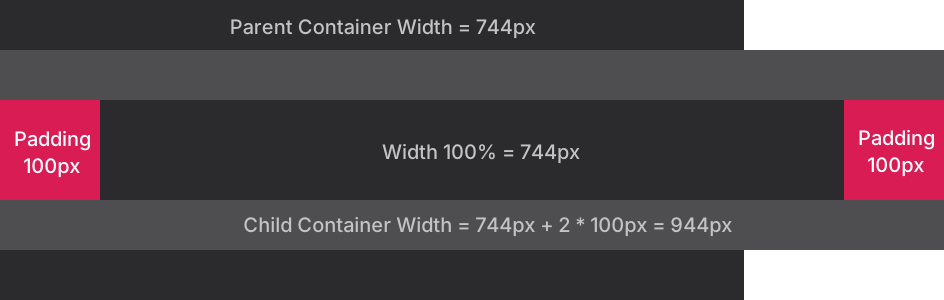
box-sizing: content-box;By default CSS adds up the three dimesions width (or height), border and padding to calculate the total size of an element. In our example we define a width of 100% for the child container. Normally we would expect the container to be 744px, since that is its parents width, but with the content-box model the padding property of 2 times 100px is added to the calculation of the child. This results in a total value of 944px, which causes the child to overflow the parent by 200px.
Expected behavior: border-box
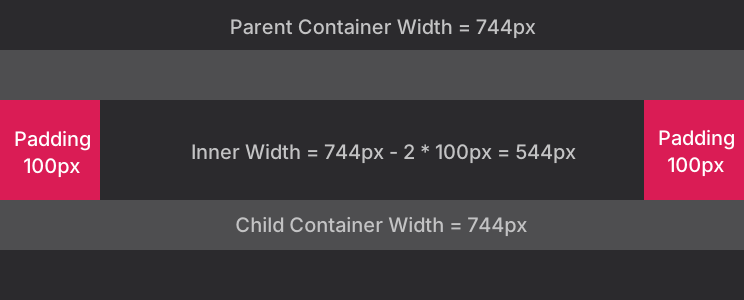
box-sizing: border-box;If we change the box-sizing to «border-box», paddings and borders are not added but subtracted from the defined child-container width. So it doesn’t matter if we define a width in percentage or pixels the container will not grow any larger than the declared value. The available space for the content («Inner Width» in the sketch below) on the other hand will shrink according to the defined paddings and borders.
How I use it
Like any other person I like to take the easy road and dont’t want to deal with the same problems over and over again. So I usually apply some CSS presets / resets at the very beginning of my CSS files or in a separate file included at the beginning of my HTML documents. CSS Resets are a commonly used practice to be used within the CSS community, mostly to prevent unexpected compatibility problems caused by different browsers / user agents.
Since fixed dimensions are mostly used in block containers (div, header, footer, etc.) I apply the reset only to those containers. The reason for that is, that with the others I usually want to use the default behavior.
article, div, section, aside, main, nav, header, footer{
 box-sizing: border-box;
}
Add this on top of your CSS file and the box model should not be a problem anymore.
Alternative solutions
Note: There are more ways and more scenarios in which such a solution is needed. I just mention the 2 ways which have the highest possibility for me to use.
width: auto
By default all containers using «display:block» have the width property set to «auto». This makes the container using the border-box behavior. Means the containers width is generated automatically depending on its paddings, borders and the available space within the parent container.
So in most cases in which you want the child container to use the whole horizontally available space from its parent, setting the width to auto will do the trick. Since this is the default for relative or static positioned block elements (div, header, footer, etc.) your don’t have to apply this rule manually. Eitherway, here is an example.
div.my-container {
 width: auto;
 padding: 0 100px;
}
As mentioned before, this solution will only work for static and relative positioned block elements which are needed to be 100% the width of its parent. As soon as it needs to be smaller than its parent, is positioned absolute or fixed, or is something like a flex element, this solution will not work anymore. The reason for that is, that the value «auto» is either not applied at all (in case of fixed width values) or will be interpreted differently. An absolute positioned container with the width set to «auto» for example, will take all the space it needs dependant on its content.
Note: «width: auto;» will work the same way for «box-sizing: border-box» and «box-sizing: content-box». So even if you change your block containers to «border-box», the default «width: auto;» behavior will not be overwritten.
Calc function
You can also calculate the dimensions for the containers manually using the powerful CSS calc function.
div.main-container{
 width: calc(100% - 200px);
 padding: 0 100px;
}
Eventhough this solution works fine and the calc function opens many new doors, I do not use it in this scenario for several reasons. Mostly because it is pretty laborious for a thing which can be automated easily by a global setting. You also have to be precise with the syntax, otherwise the calc method might not work properly (which shouldn’t be much of a reason to not use certain features, but for beginners it can be pretty annoying). Compatibility wise you will be fine using it with modern browsers.
Useful links
https://developer.mozilla.org/de/docs/Web/CSS/box-sizing (Mozilla «box-sizing» documentation)
https://developer.mozilla.org/de/docs/Web/CSS/calc() (Mozilla «calc()» documentation)